¶ Integration Note
| Manufacturer | Innovo |
| Model | See list |
| Driver Name | MagicCubeInputPro |
| Driver Version | 26.07.06.00 |
| Document / Driver Revision | Jul 6, 2026 |
| Core Min / Max Tested | 8.8.xx |
¶ Overview
This is a two-way driver to control and get feedback from supported Magic Cube based on Magic Cube Binary Sensors, Events and Buttons
¶ Supported Features
THE FOLLOWING OPTIONS ARE SUPPORTED :
- Support for Innovo’s Magic Devices
- Auto Discovery of all binary sensors and NFC tags connected to Magic Cube regardless of manufacturer
- Open listen socket for instant feedback
- Self-healing connection monitor.
- Fast LAN-based operation – No internet connection is required
- Auto Discovery and Installation of Magic Cube Controller
- Mix and Match from different manufacturers in one driver
- Install by Platform, by Entity, by Device, or build a manual Input List
- Support for event and button entities (Input List)
THE FOLLOWING OPTIONS ARE NOT SUPPORTED :
The driver only supports sensor devices. No other Magic Cube devices are supported
¶ Supported Devices
BAF
Bond
BTHome
Fibaro
Flume
KNX
Lutron Caseta
MQTT
QingPing
Shelly
Sonoff
Swidget
Switchbot
TpLink
YoLink
Zigbee
ZWave
Any other platform configured in the Magic Cube can be installed using the Other option. See the installation notes below.
¶ Sub Drivers
The driver installs one of three sub driver types under Input Controllers, depending on how you install:
- MagicCubeBinarySensor – one sub driver per binary sensor entity. Installed for devices with a single binary sensor and by the By Entity option.
- MagicCubeInputDevice – one sub driver per device with up to 20 inputs. The sub driver automatically discovers all of the device’s binary sensors. Installed for devices with more than one binary sensor and by the By Device option.
- MagicCubeInputList – a manual list of up to 40 entities of your choice. Allowed entity types: binary_sensor. event. button. Installed by the By List option; type the entity ids into the sub driver’s Inputs List page.
¶ Driver Configuration
¶ Installation Process
It is recommended that you follow the below installation process to make sure you are running the latest version of the [driver].
- Open Input/output Section, Communication Devices, Add new Communication Device.
- In V2, click Import MagicCubeInputPro driver. In V1, Navigate to the folder where the driver is located and Choose the MagicCubeInputPro driver, OK
- If you receive a warning that this is not a Native Elan driver, click OK
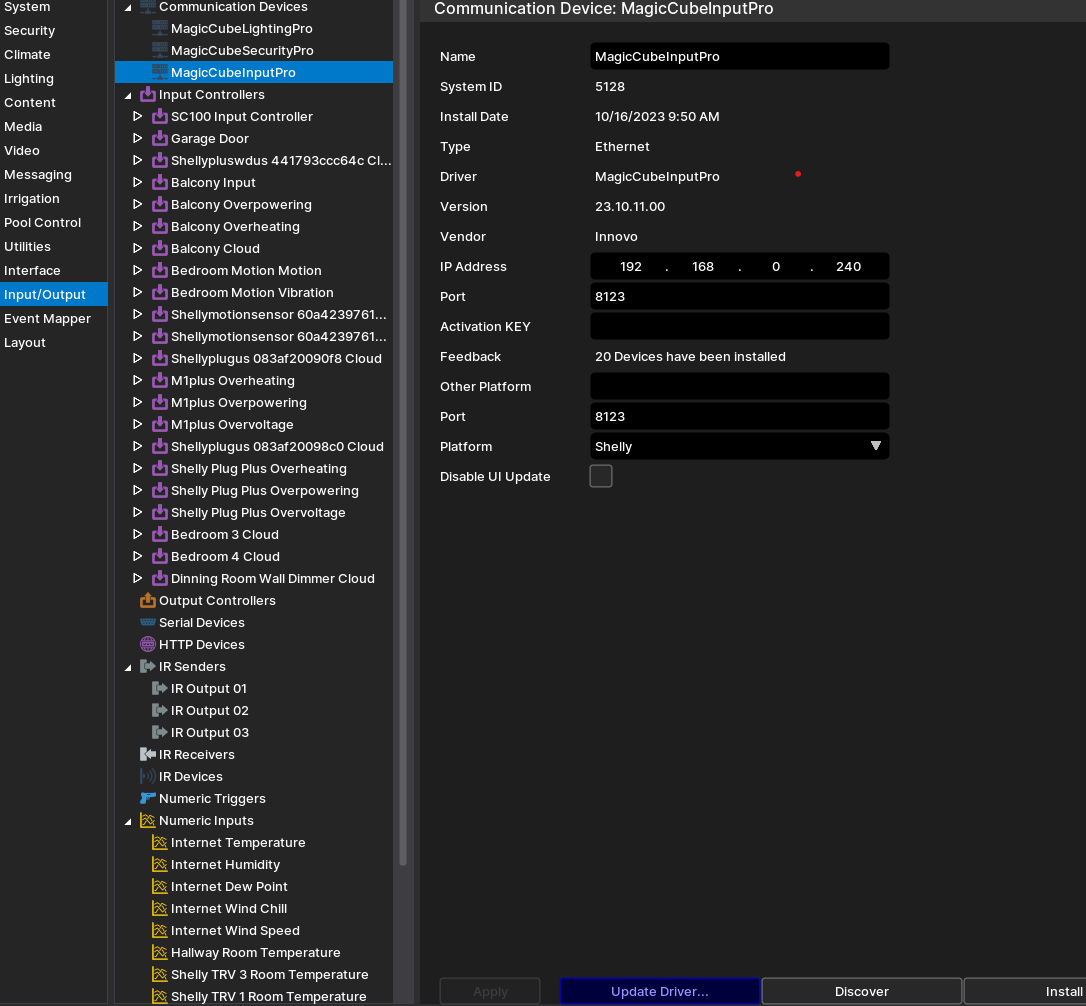
- The Driver will automatically go into trial mode for 90 days. Wait for about 10 seconds and the Status will turn Green
- Add the Innovo Activation Code received in the email.
- Starting with Magic Cube Aura and V5 Patch 3, you no longer need to add the token. The token is added using the Magic Cube Admin Interface. See Magic Cube User Manual
- Click Apply.
- Click Discover, and the driver will discover and populate the IP address of the Magic Cube device on the network. If the device is not discovered or you have more than one, enter the IP address manual.
- From the Platform dropdown, choose the brand of sensors you would like to install, then click Install Platform. The Driver will automatically discover all sensors connected to the Magic Cube and install them under Input Controllers as sub drivers: devices with a single binary sensor get a MagicCubeBinarySensor sub driver, and devices with more than one get a MagicCubeInputDevice sub driver.
- By Entity: installs a single MagicCubeBinarySensor sub driver for one entity. Type the entity id in the Other Platform/Entity field, choose By Entity from the Platform dropdown, click Apply, then Install Platform.
- By Device: installs a MagicCubeInputDevice sub driver for the device that owns an entity. Type one of the device’s entity ids in the Other Platform/Entity field, choose By Device from the Platform dropdown, click Apply, then Install Platform. The sub driver discovers all of the device’s binary sensors (up to 20).
- By List: installs an empty MagicCubeInputList sub driver (no Magic Cube query). Choose By List from the Platform dropdown and click Install Platform. Then open the sub driver’s Inputs List page and type up to 40 entity ids (binary_sensor. event. button.). Click Install Platform again to add another list.
- NOTE: You must have the brand/platform preconfigured in the Magic Cube First. See Magic Cube Manual.
- NOTE: If the platform you want to install is not shown on the platform dropdown, then contact support@innovo.net to get the exact name of the platform you want. After you get the exact name, choose Other from the platform dropdown, enter the name you have in the Other Platform Field, click Apply, and install.
- NOTE: To continue installing platforms from the dropdown you should have the Other Platform field empty
- NOTE: Installing requires Magic Cube firmware with API schema 102 or newer. If the driver reports “Magic Cube needs an update!”, update the Magic Cube firmware first.
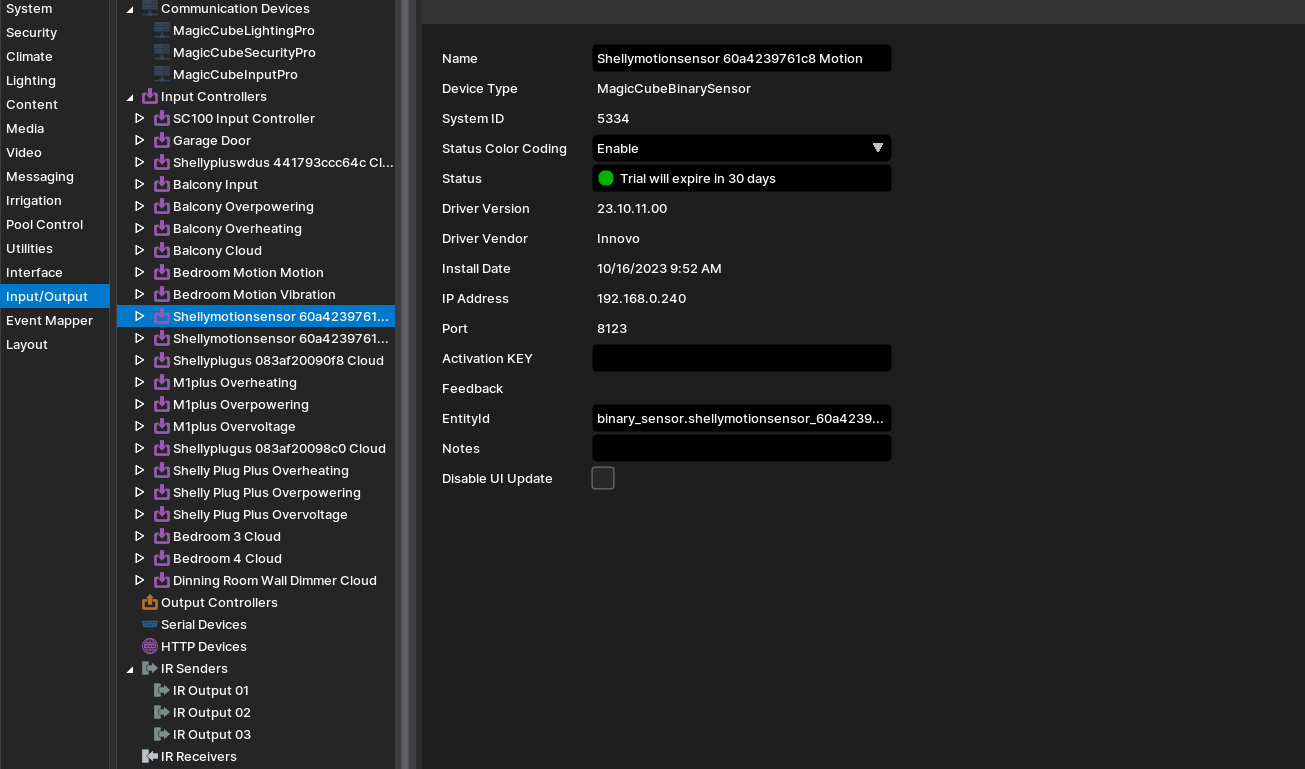
If you need to add more sensors in the future, click on Install Platform.
¶ Device Configuration
- Install Magic Cube . Setup all your devices in Magic Cube and name them according to your needs. See Device Integration Notes at the end
- The driver relies on a static IP address for each Magic Cube device. Assign a Static IP address using DHCP reservations in your router. If the device IP address changes, then change it manually in the Elan Configurator
- Starting with Magic Cube Aura and V5 Patch 3, you no longer need to add the token. The token is added using the Magic Cube Admin Interface. See Magic Cube User Manual
¶ Troubleshooting
- Driver not Activated. Wait 15 seconds after Apply
- Driver not discovering devices. Try discovery again. Make sure broadcasting is enabled on the network
- “Magic Cube needs an update! (API schema x < 102)”. The Magic Cube firmware is too old for this driver. Update the Magic Cube, then click Install Platform again
¶ Changelog
¶ Version 26.07.06.00
- Add support for the Innovo Activation Driver.
- Improve connection self-healing and offline feedback.
- Install now re-reads the Magic Cube firmware version, so installs work right after a firmware update.
¶ Version 26.06.22.00
- Add By Device and By List install options with two new sub drivers: MagicCubeInputDevice (per device, up to 20 inputs) and MagicCubeInputList (manual list of up to 40 entities).
- Smart platform install: devices with one binary sensor get a per-entity sub driver, devices with more than one get a per-device sub driver.
- Require Magic Cube firmware with API schema 102 or newer.
¶ Version 26.05.29.00
- Add By Entity install option.
- Add Bond, BTHome, MQTT and YoLink platforms.
¶ Version 26.04.14.00
- Add support for button entities.
- Add Lutron Caseta as a platform.
¶ Version 26.03.04.00
- Add support for Event entities.